
Your 2FA accounts,
always within reach.
Authenticator Exporter scans Google Authenticator's export QR codes, stores every account on your device, and lets you re-export them anytime — so a lost phone never means lost access.
iOS 16+ · Android 8.0+

The problem it solves
Google Authenticator exports your accounts as a series of QR codes encoded in a proprietary format. Standard QR scanners can't read them. If you lose your phone, accidentally delete the app, or switch to a new device, those codes — and the 2FA access they protect — are gone.
Authenticator Exporter decodes that format, stores every account safely on your device, and gives you a way to re-export them at any time.
Screenshots
Every screen is designed for clarity. Here's what you'll see.
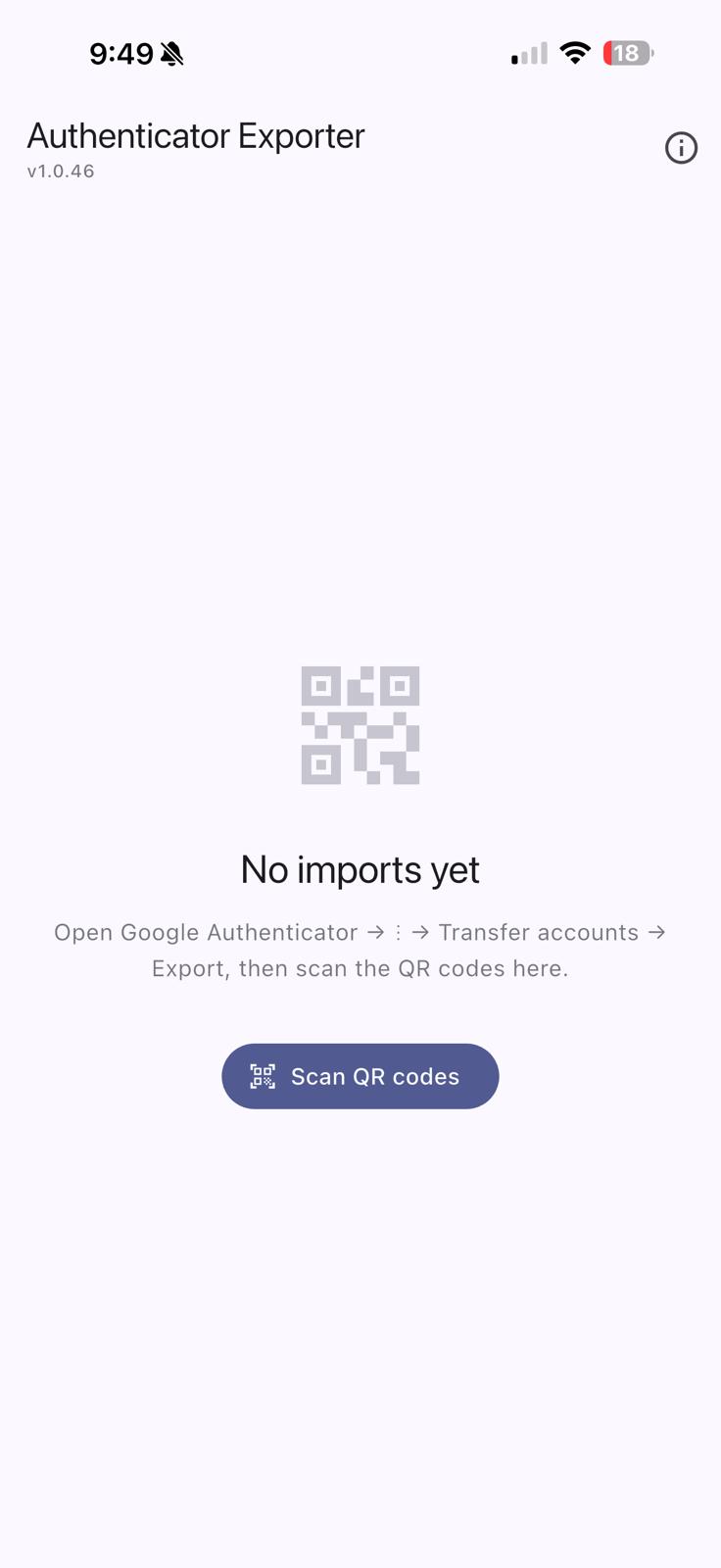
Empty state — before your first import
Nothing stored yet. One tap starts your first import.
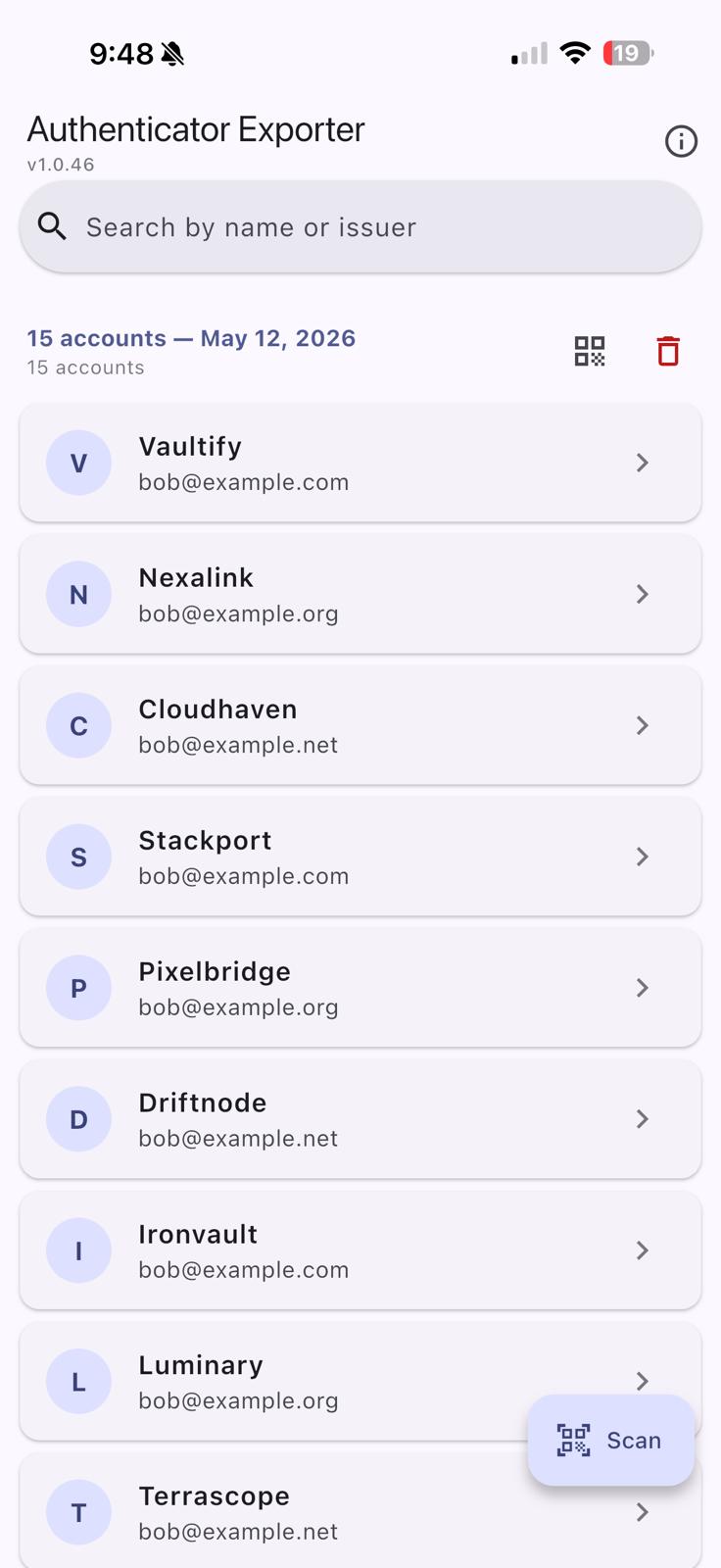
Your accounts, always visible
All your accounts in one scrollable list, grouped by import date.
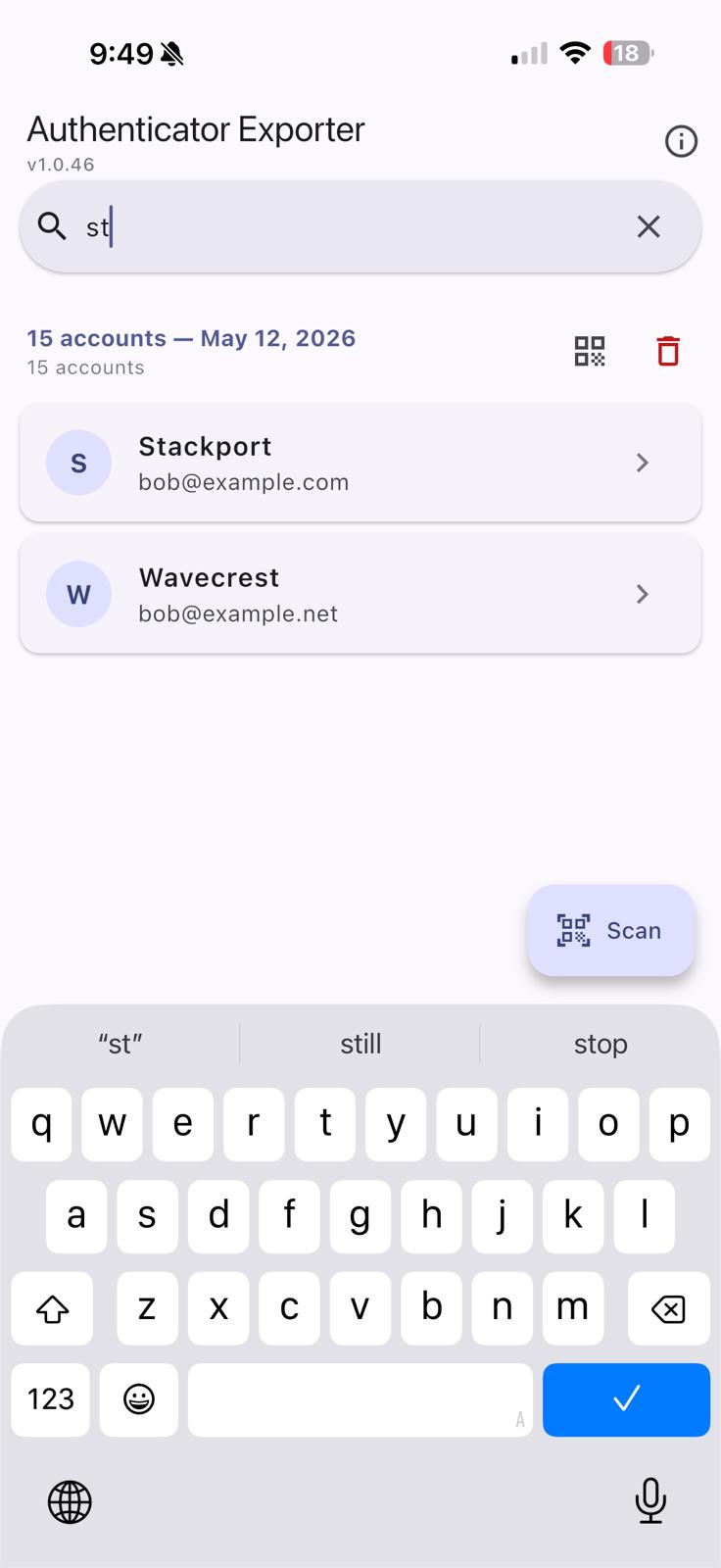
Search across everything
Live search filters by name or issuer as you type.
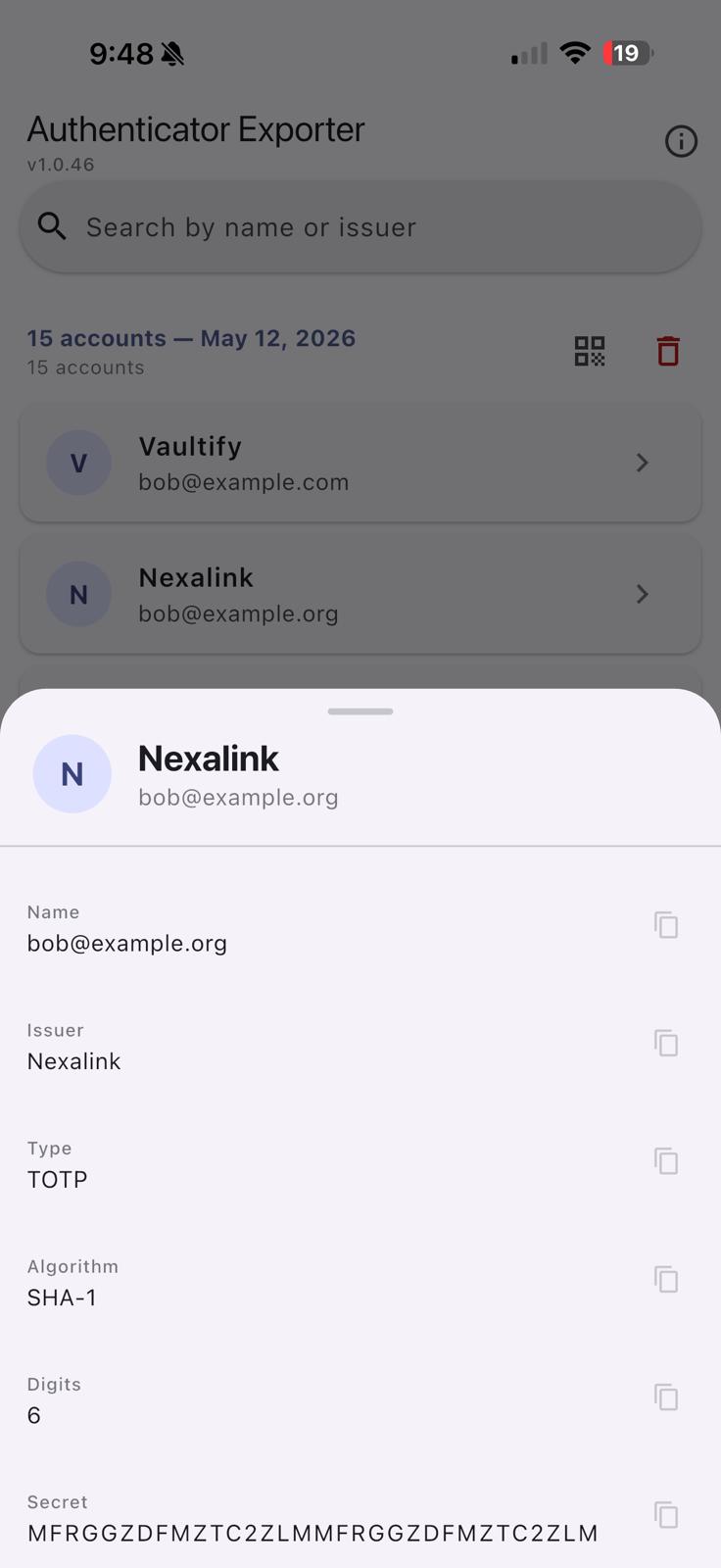
Every detail, one tap to copy
Open any account to see its full record — name, issuer, type, algorithm, digit count, and the raw Base32 secret.
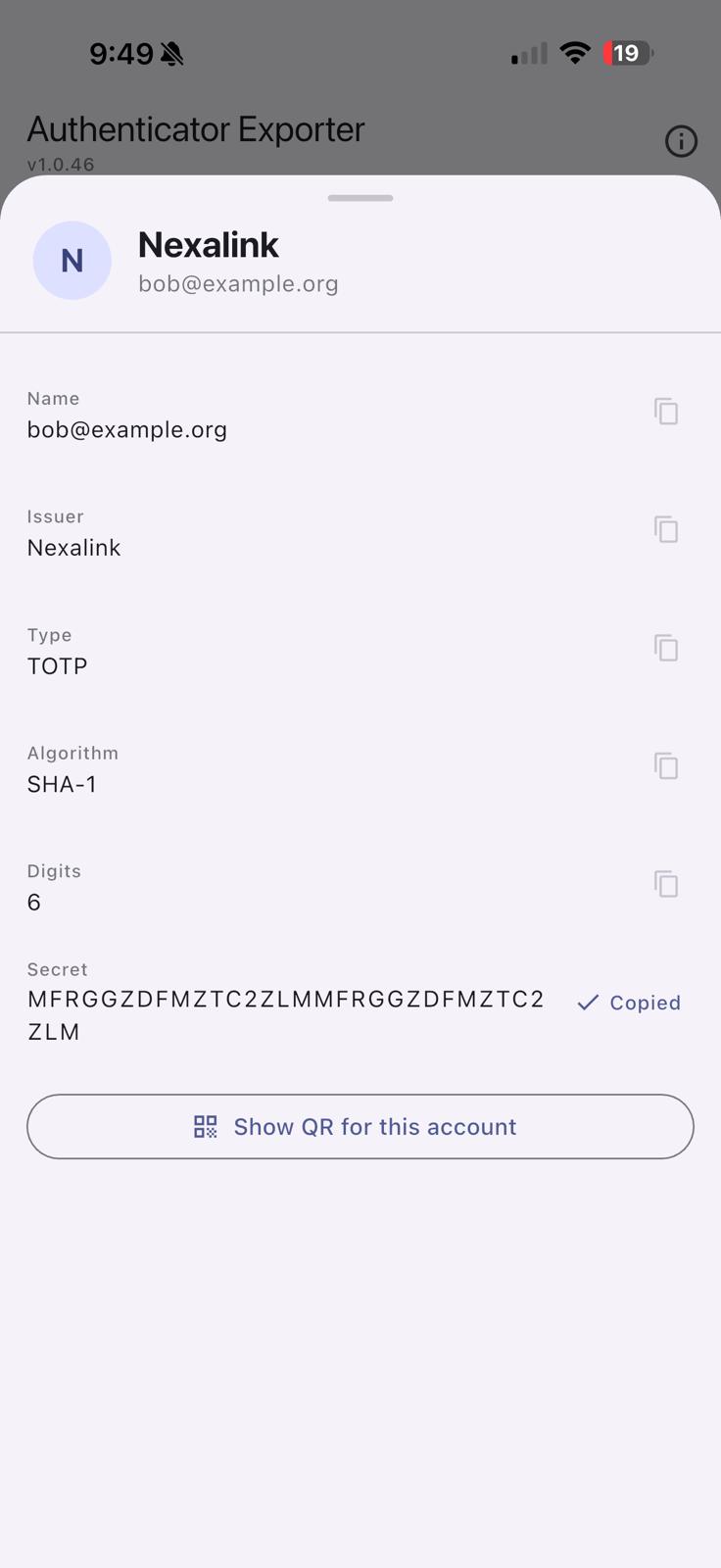
Copy your secret with a single tap
The Base32 secret is always visible. Tap it to copy instantly — confirmed with an inline "Copied ✓" flash.
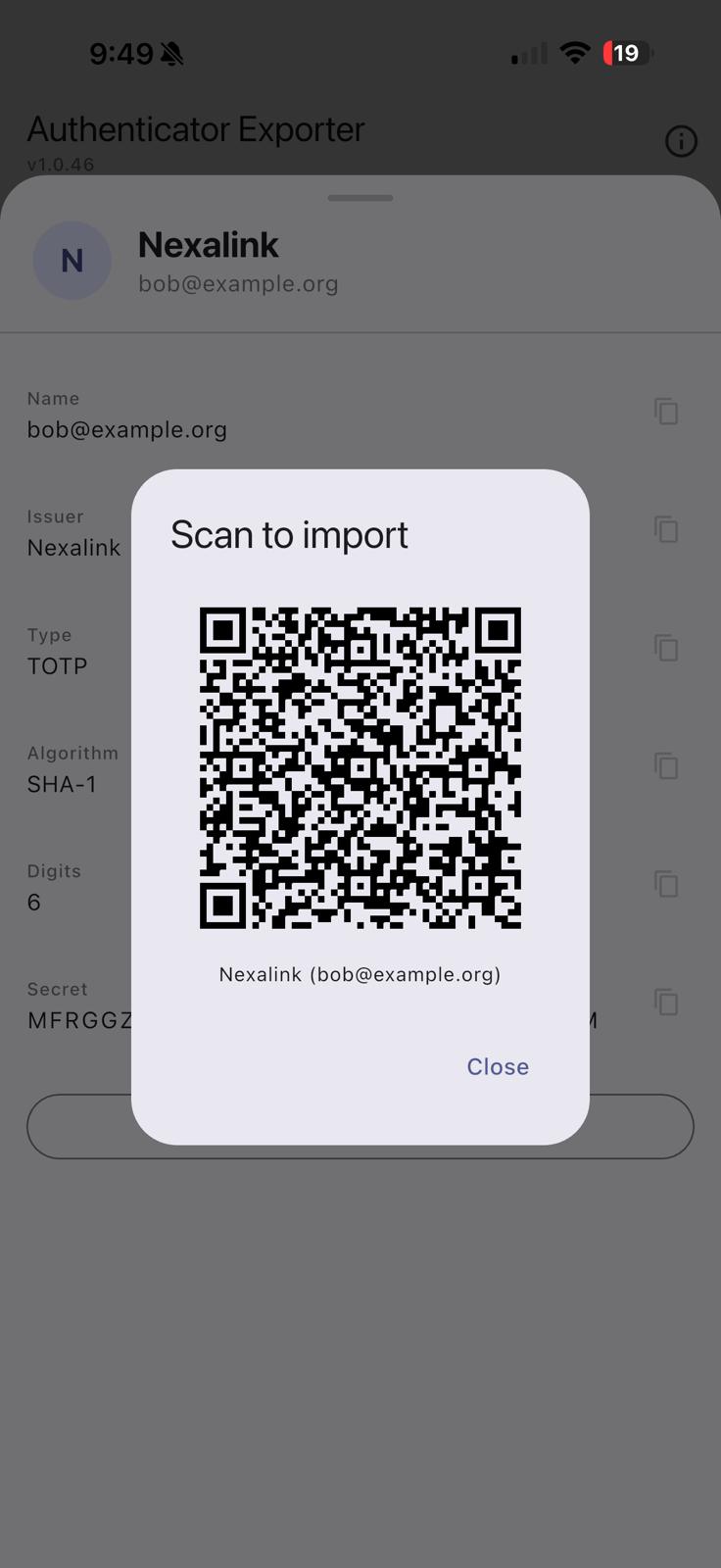
Re-import a single account anywhere
Generate a scannable QR code for any individual account — using the same standard format every authenticator app supports, so it imports into any of them.
How it works
Four simple steps from Google Authenticator to a fully backed-up set of 2FA accounts.
Export from Google Authenticator
Open Google Authenticator on your source device: ⋮ → Transfer accounts → Export accounts. Select the accounts you want, and Google Authenticator generates one or more QR codes.
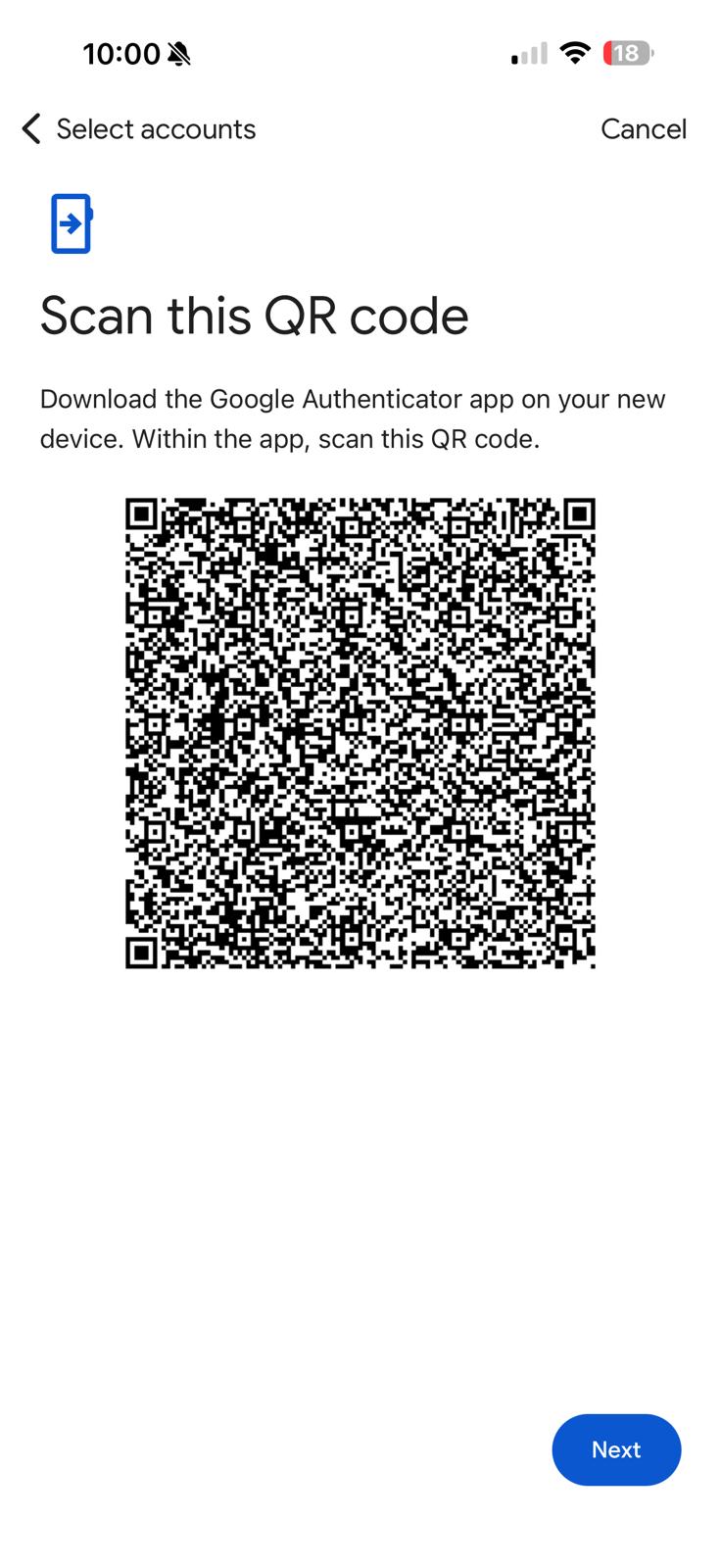
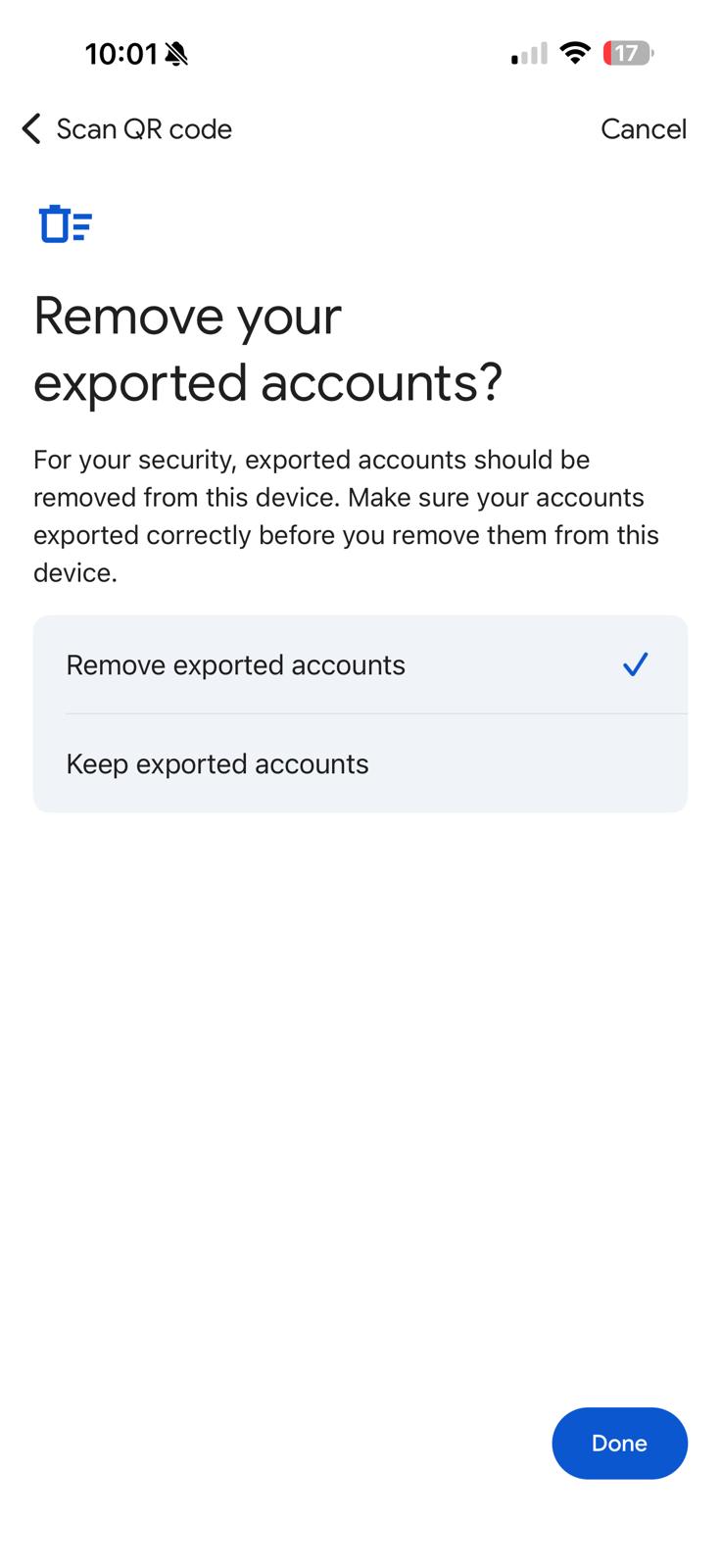
Scan or import in Authenticator Exporter
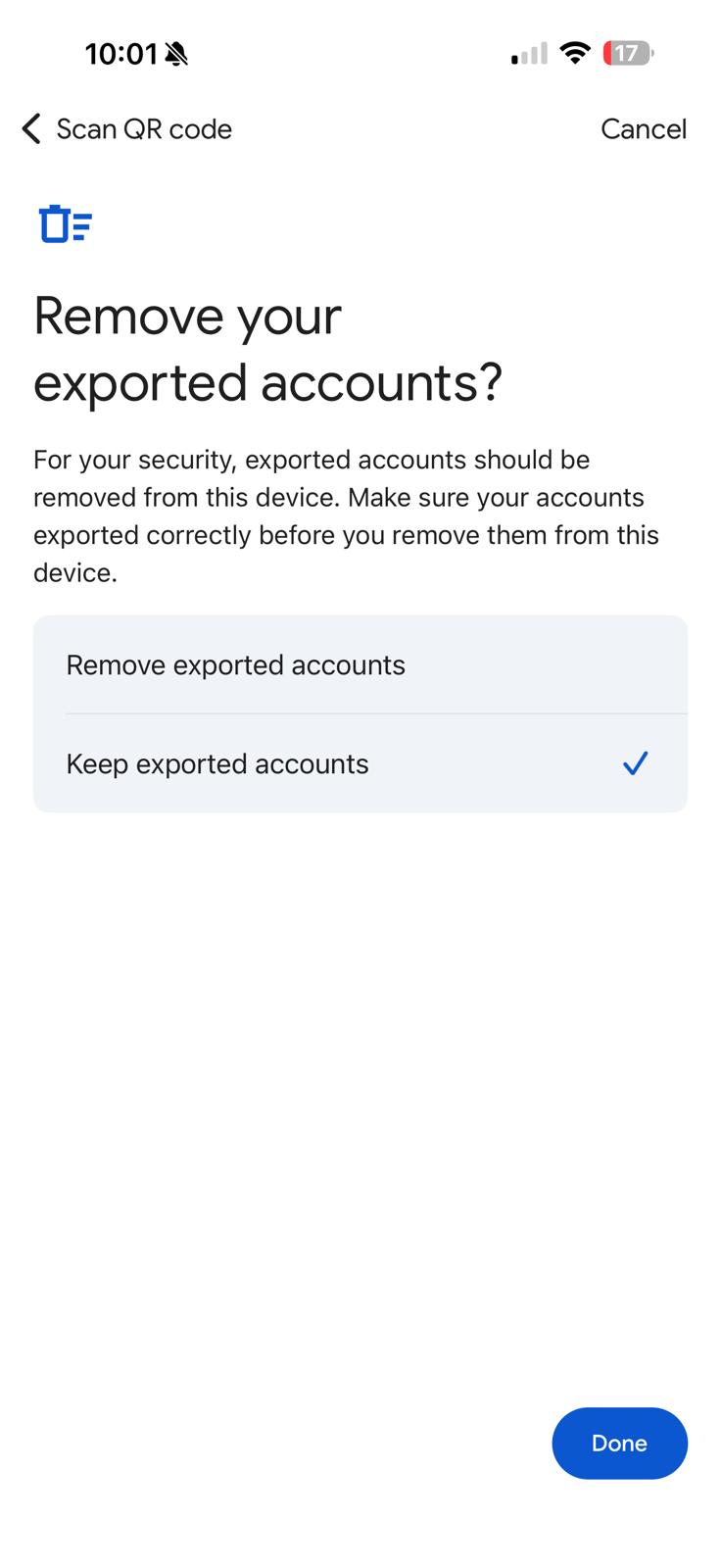
Open Authenticator Exporter and tap Scan. Point your camera at each export QR code in turn — the app tracks your progress and tells you which code to scan next. Prefer screenshots? Use Import from photos instead to decode them all at once.
All your accounts, stored securely on-device
Every decoded account is saved locally:
- Metadata (name, issuer, type, algorithm, digits) — stored in SQLite on your device
- Secret key — stored in the platform secure enclave (iOS Keychain / Android EncryptedSharedPreferences), never in plain text
Nothing ever leaves your device. No server. No cloud sync. No account required.
Re-export whenever you need to
Use the Export QR button on any import to generate a fresh set of scannable QR codes. Scan them with any compatible authenticator app to restore your accounts — on a new device, a second device, or as a backup.
Features at a glance
Privacy
Authenticator Exporter was built around one principle: your secrets belong to you, not to us.
No tracking
No analytics, no telemetry, no crash reporters that contact external servers.
No account
Browsing, copying, and exporting your accounts never requires signing in.
No cloud
All data is stored exclusively on your device. Nothing is transmitted anywhere.
Secure storage
Secret keys are stored in the platform secure enclave — same as password managers and banking apps.
If your subscription lapses, your already-imported accounts remain on your device. Data is never held hostage.
Subscription
Importing new accounts requires an active subscription. All other features — browsing your account list, viewing full account details (including secrets), copying fields, and exporting QR codes — are free, forever.
Monthly
Flexible
Cancel anytime.
Annual
Best value
Billed once a year.
The subscription model is a deliberate choice: the app generates revenue from people who find it useful, not from selling or exploiting user data. Restore a previous purchase at any time from the Subscribe screen.
Compatibility
iOS
iPhone running iOS 16 or later
Android
Android 8.0 (API 26) or later
Import source: Google Authenticator (iOS & Android)
Bulk export (whole batch): Google Authenticator, Aegis Authenticator, 2FAS, and any app supporting the otpauth-migration:// format
Single-account export: Any authenticator app, using the same standard code and QR format websites use to enroll a new 2FA account
Ready to back up your 2FA accounts?
Download Authenticator Exporter and never lose access to your accounts again.